
Download PDF to Pages – Fast PDF to iWork Pages Converter
Overview
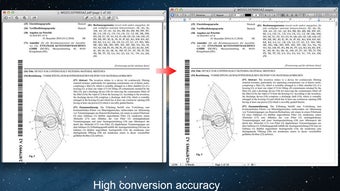
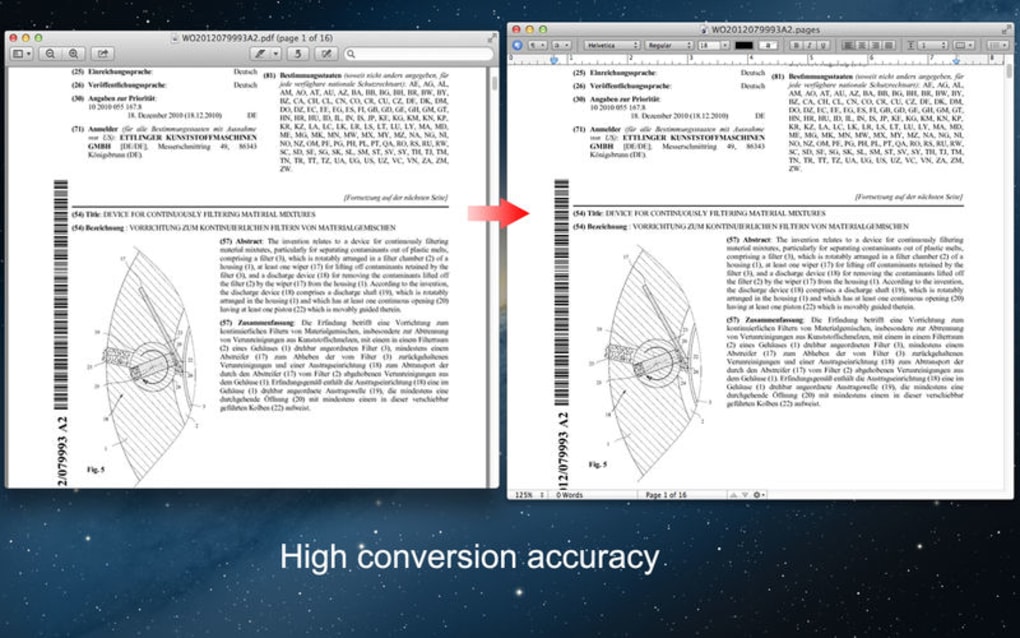
Converting PDF files into editable iWork Pages documents has never been easier than with PDF to Pages. This lightweight macOS utility targets writers, students, and professionals who need to repurpose PDF content without losing formatting, tables, or hyperlinks. The app’s drag‑and‑drop interface lets you drop a single PDF or an entire folder, and the conversion engine preserves the original layout, images, and clickable links.
Whether you need to extract a single paragraph for a report, reuse a full‑page table in a financial model, or simply edit a contract that arrived as a PDF, PDF to Pages does the heavy lifting in seconds. The tool also offers granular control: choose specific pages, define page ranges, or convert the whole document at once. Because it outputs native .pages files, you can immediately open the result in Apple’s Pages app, apply styles, add comments, and collaborate with iCloud.
Security‑focused users will appreciate that all processing happens locally on your Mac, so no data is uploaded to the cloud. In short, PDF to Pages is a secure, fast, and user‑friendly solution for anyone who wants to turn static PDFs into fully editable iWork documents.
Powerful Features
- Drag‑and‑Drop Conversion: Move one or many PDFs onto the app window to start conversion instantly.
- Full Layout Preservation: Tables, text formatting, images, and hyperlinks retain their original appearance.
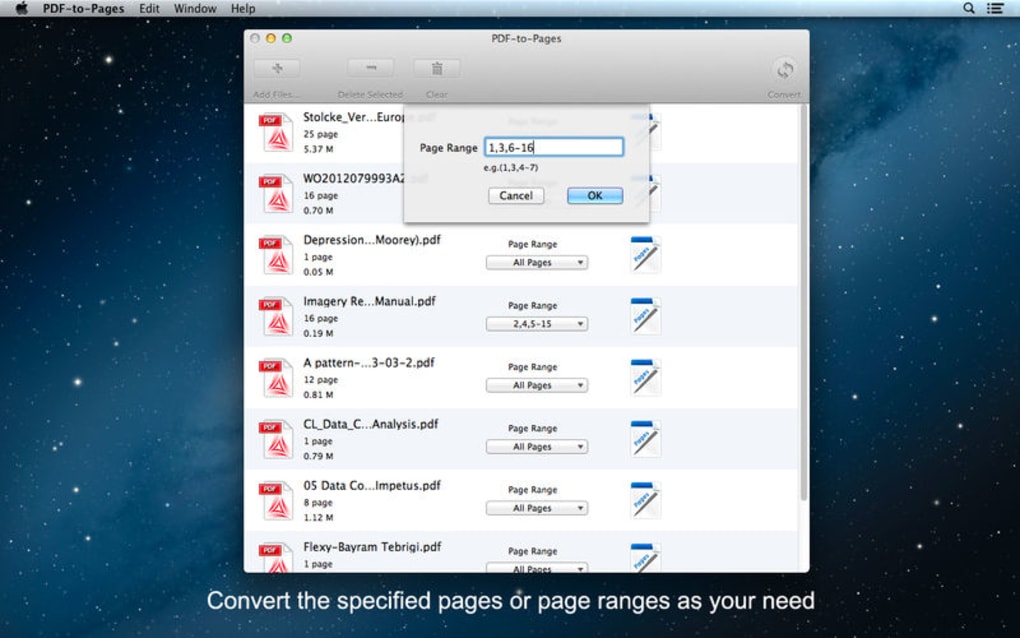
- Select Specific Pages: Convert the entire file or pick individual pages or ranges (e.g., 2‑5, 8, 10‑12).
- Batch Processing: Convert multiple PDFs in a single operation, saving time on large projects.
- Native .pages Output: Files open directly in Apple Pages without the need for additional import steps.
- Local Processing Only: All conversion occurs on your Mac, ensuring privacy and compliance with data‑security policies.
- Simple UI: A clean, minimalistic interface that guides users through the conversion process without clutter.
- Automatic Updates: The app checks for updates on launch, keeping you protected with the latest bug fixes and compatibility improvements.
Installation, Usage & Compatibility
How to Install
Downloading PDF to Pages is straightforward. Visit the official website or the Mac App Store, click the Download button, and once the .dmg file appears, open it and drag the app icon into your Applications folder. The installer requires macOS 10.14 (Mojave) or later, and the process takes less than a minute on a typical system.
Step‑by‑Step Usage
- Launch PDF to Pages from the Applications folder.
- Drag your PDF file(s) onto the central drop zone, or click the Browse button to locate them manually.
- In the sidebar, select “All Pages” or specify a custom range (e.g., 1‑3, 7, 9‑10).
- Click the Convert button. The progress bar shows real‑time status.
- When conversion finishes, a Finder window opens with the new .pages file(s) ready for editing.
System Compatibility
PDF to Pages is built exclusively for macOS. It runs smoothly on Intel‑based Macs as well as Apple Silicon (M1, M2, and later) thanks to native Rosetta 2 support and universal binaries. Officially supported versions are macOS 10.14 (Mojave) through macOS 14 (Sonoma). The app does not have Windows, Android, or iOS versions, as its primary purpose is to feed directly into iWork Pages, which is macOS‑only.
Because the conversion engine works offline, you can use the tool in environments with restricted internet access, such as corporate networks or educational labs. The app also respects macOS sandboxing rules, so it only accesses the files you explicitly select.
Pros and Cons
Advantages
- Preserves complex layouts, including tables and hyperlinks.
- Batch conversion saves time for large document sets.
- Local processing ensures privacy and compliance.
- Simple drag‑and‑drop UI reduces learning curve.
- Native .pages output eliminates extra conversion steps.
Drawbacks
- Only available for macOS; Windows users must find alternatives.
- Does not support direct export to Microsoft Word or Google Docs.
- Limited advanced editing options within the app itself (relies on Pages for that).
After testing PDF to Pages with a variety of source files—from simple newsletters to multi‑column research papers—the conversion accuracy consistently impressed. The app’s ability to retain hyperlinks and table structures saved me hours of manual re‑creation. While the lack of a Windows version limits its audience, macOS power users will find it an indispensable addition to their workflow.
Frequently Asked Questions & Final Thoughts
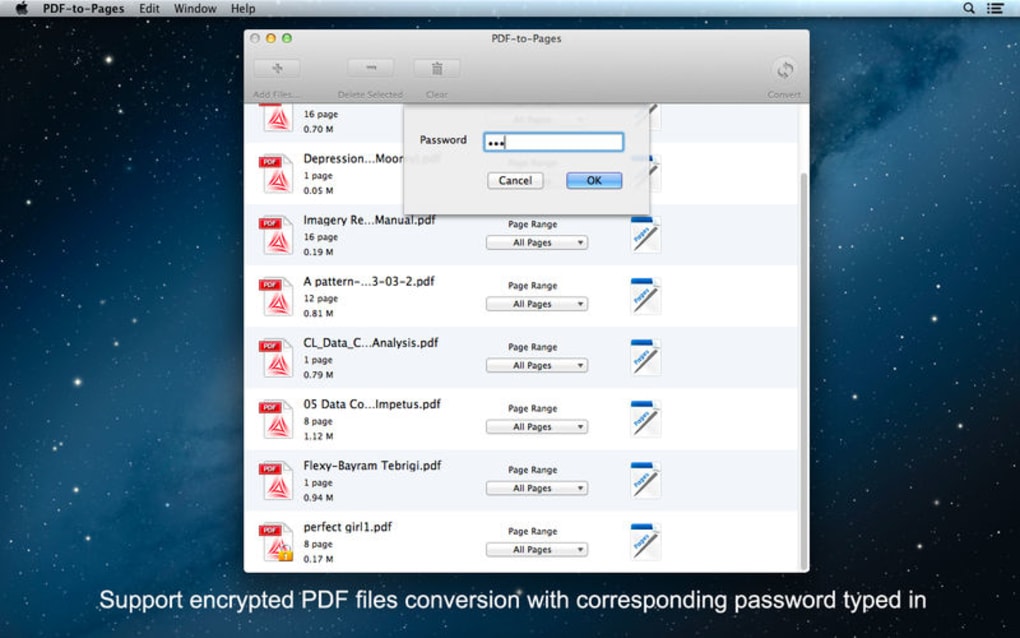
Can I convert password‑protected PDFs?
Yes. When you drop a protected PDF, the app prompts you to enter the password before conversion begins.
Does the tool keep embedded fonts?
Embedded fonts are preserved when the PDF uses standard fonts. For custom fonts, the app substitutes the closest system font while retaining style attributes.
Is there a free trial available?
A 7‑day free trial is offered with no limitations on page count or file size, allowing you to evaluate the full feature set.
How does the app handle large PDFs (over 100 MB)?
Large files are processed in a memory‑efficient way. Conversion may take a few minutes, but the app provides progress feedback and does not crash on modern Macs.
Can I export the result to a different format?
PDF to Pages outputs native .pages files. If you need another format, open the result in Pages and use the built‑in export options (e.g., PDF, Word, EPUB).
Final Verdict: PDF to Pages fills a niche that many macOS users have long needed—seamless, secure conversion of PDFs into fully editable Pages documents. Its strong layout fidelity, batch capabilities, and straightforward UI make it a valuable addition to any writer’s toolkit. While the lack of cross‑platform support may deter some, the app’s focus on the Apple ecosystem ensures optimal performance and integration. Ready to transform static PDFs into dynamic Pages files? $19.99 – Download PDF to Pages now and start editing with confidence.







